

To add a podcast grid to your page, simply drag and drop the podcast grid template to the page.
Query parameters
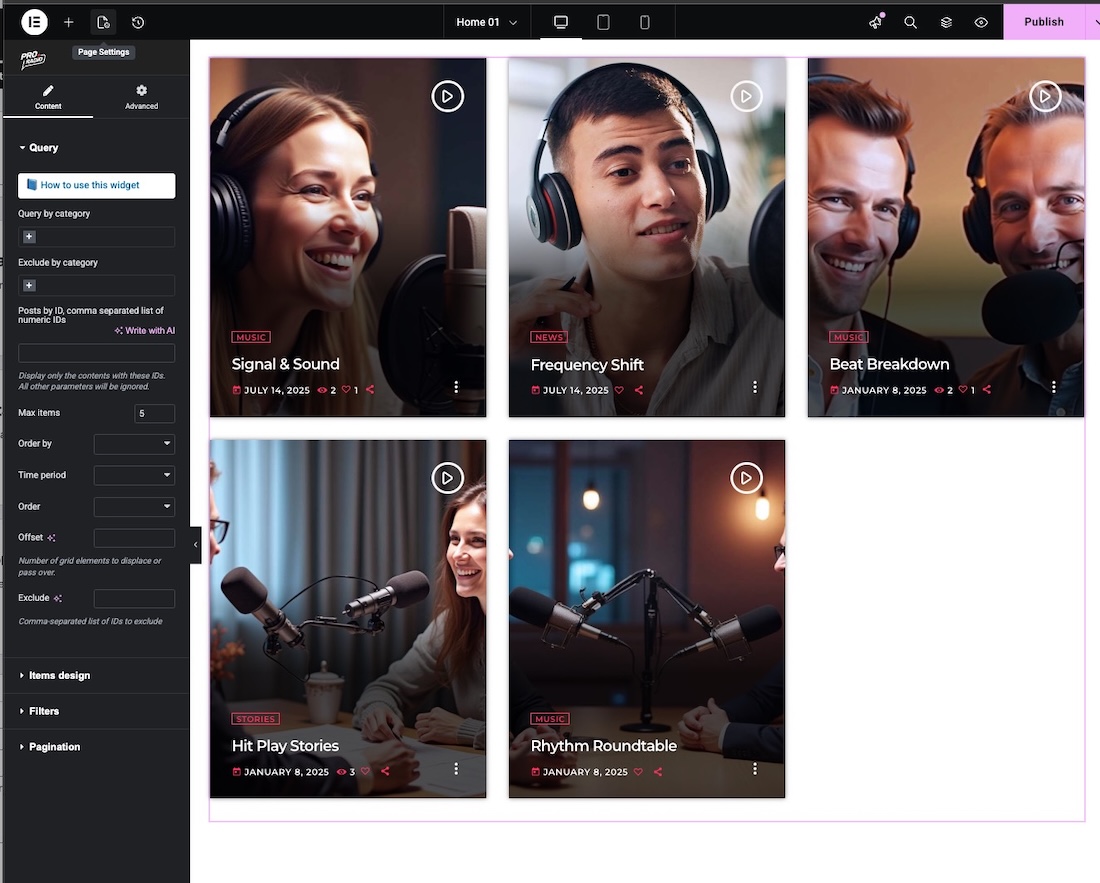
- Category filters: you can select one or more categories to display. Podcasts can be filtered by Podcast Categories or by Podcast Series
- Exclude: use this parameter to not show one or more categories from this widget
- Posts by ID: add the numeric ID of the specific posts to display
- Max items: the initial amount of posts to display. We recommend using a multiple of the items per row parameter, available in the Item Design section of the widget.
Items design
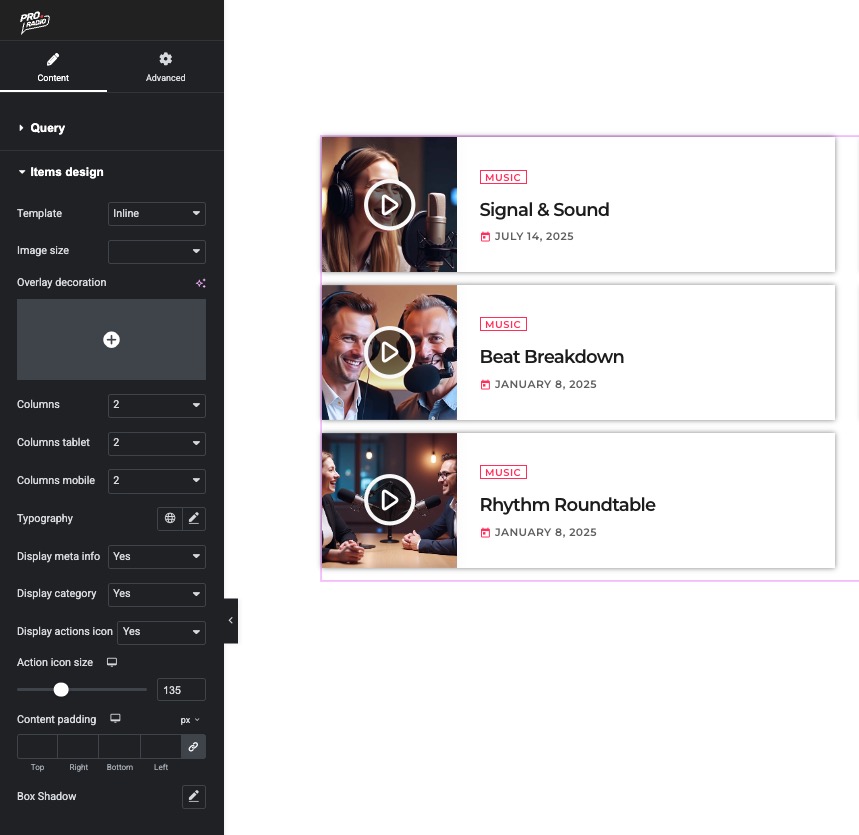
- Template: there are 3 tempaltes for podcasts: default (the cart) , Small (meant for displaying smaller aquared podcast cards) and inline, perfect to create lists.
- Image size: changes the size and proportion of the featured image loaded in the items
- Overlay decoration: upload a PNG with translarent background to display a graphic decoration on top of the cards and style your widget
- Columns: change items per row
- Typography: click the pencil to style font family, size and more
- Display meta info, category and action icons
- Action icon size: change the Play size
- Content padding: add space around the text area
You can customize the appearance of the Hover effect and the card design from Appearance > Customize. Please see the Customizations chapter for more details.
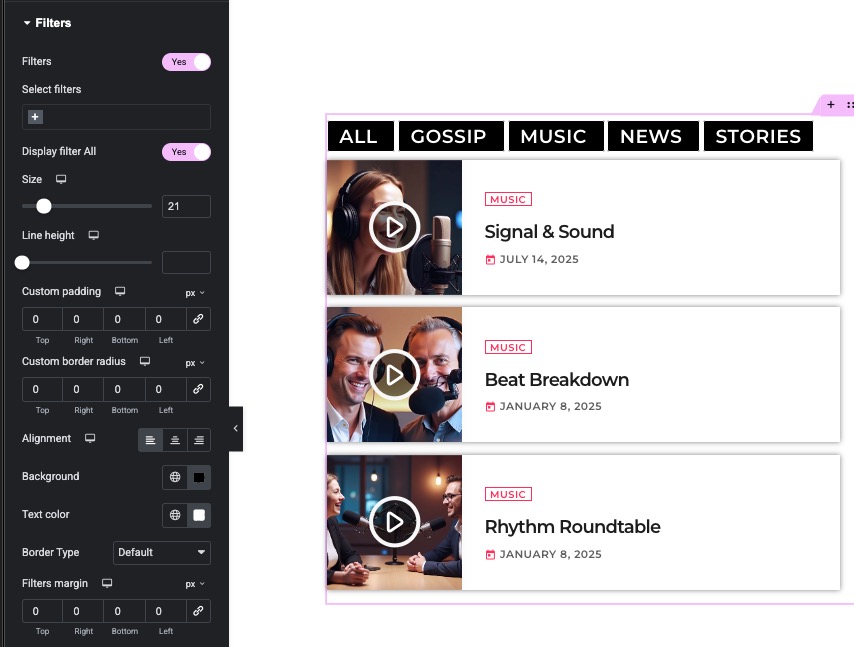
Filters
You can display a filters list above the grid, this will dynamically extract podcasts under that category.
Pagination
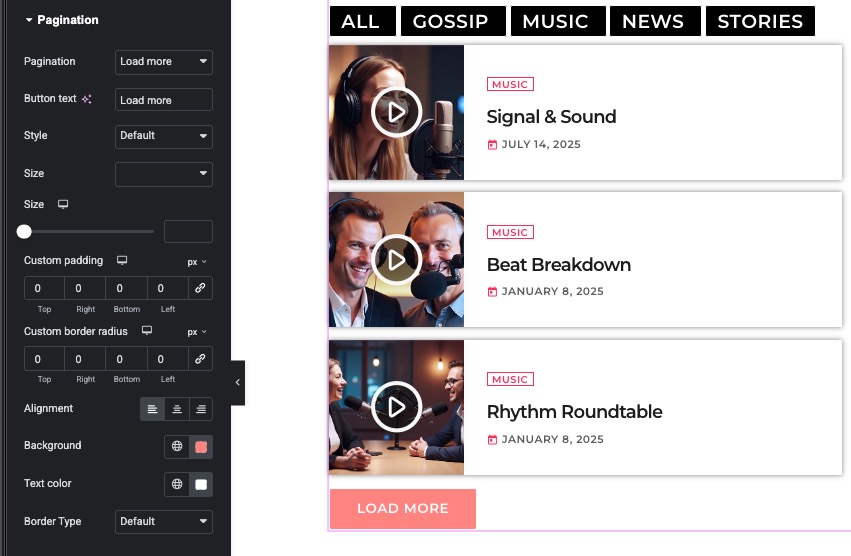
Add a button under the podcast grid to load more posts. Several styles are available.