

What this tool does
This maintenance function helps you free disk space by removing old tracks from the database, along with their related local media files (artwork images and MP3 preview/sample files), when eligible.
Before you start
- Make a full site backup. This is a destructive action.
- Be aware: if any page, widget, or template is using the same artwork images or MP3 preview files, those resources may become missing after deletion (404 errors).
- If a song is used in a chart tracklist, it will not be deleted, to ensure images and music samples don't go missing
Important rules used to decide what can be deleted
- Storage date: only tracks stored before your selected cutoff date are considered.
- Latest play date safety: if a track was stored before the cutoff date but was played recently (after the cutoff date), it will NOT be deleted.
- Chart safety: artwork images and MP3 preview/sample files referenced by any chart will NOT be deleted. Tracks tied to those chart-used media are skipped.
Sidekick Premium or Pro Radio Plus are required
This is an advanced function. It requires a Premium sidekick license (more info) or Pro Radio Plus (more info)
Step-by-step process
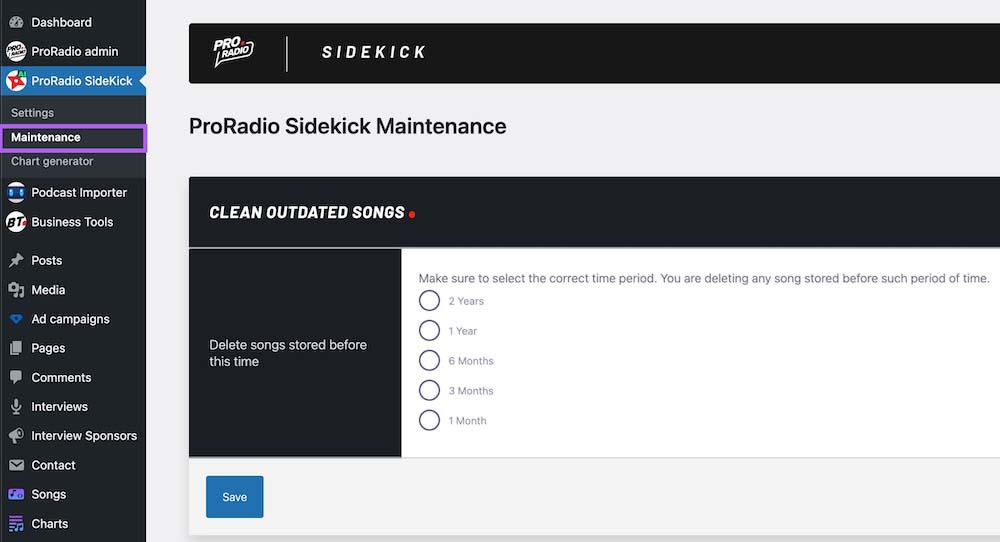
- Select the time period (example: 6 months, 1 year, 2 years).
- Click to continue. You will see a warning screen.
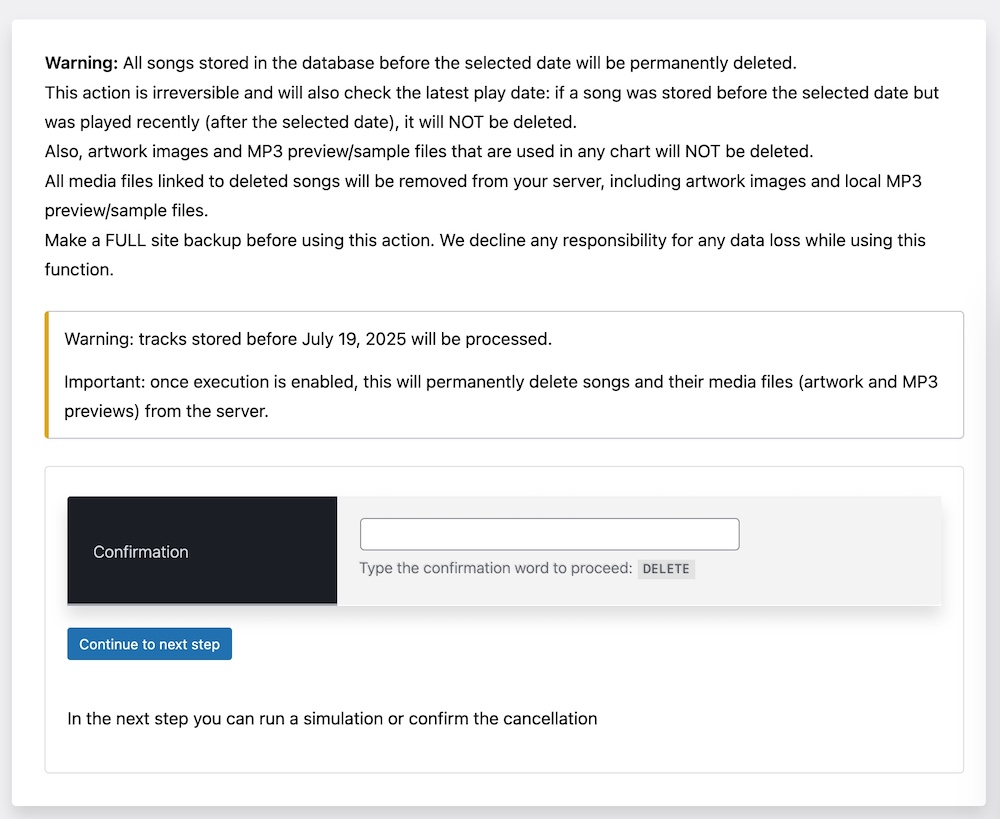
- Type DELETE in the confirmation field.
- Click Continue to reach the final control screen (this is the second step).
- Use one of the available buttons:
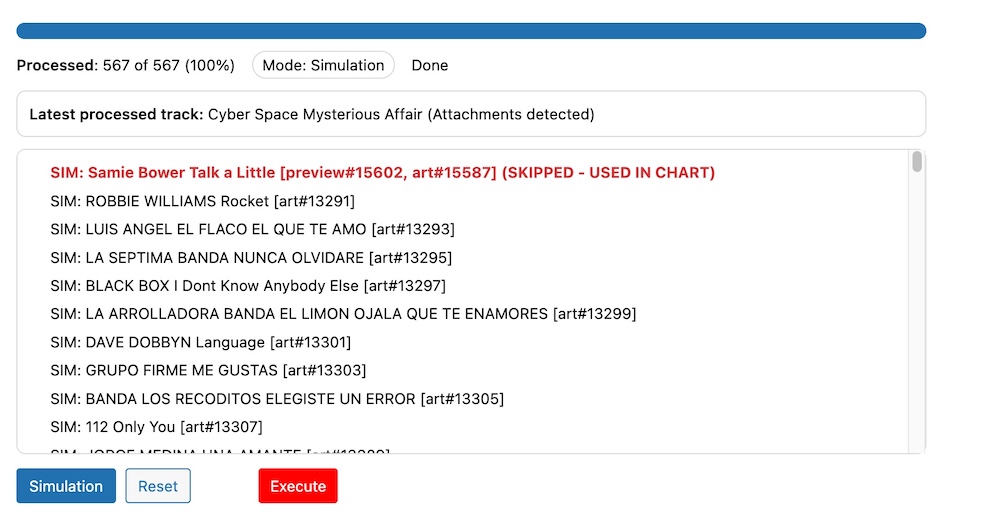
- Simulation: runs a safe test and shows what would be processed.
- Execute: permanently deletes eligible tracks and media.
- Reset: clears the simulation/execution markers so you can test again.
During the second step you can review the selected time period and need to type "DELETE" to proceed. This ensures you're voluntarily proceeding with the selected time interval. Yet this step will not perform any change to your data. Is just a confirmation step.
Simulation vs Execute
- Simulation is recommended first. It helps you verify results without deleting content.
- Execute will show one last confirmation popup before proceeding.
- During Simulation, any track that is protected (recently played or used in a chart) will appear as SKIPPED - USED IN CHART (or similar) in the log.
What gets deleted during Execute
- Eligible track posts (custom post type: proradio-songs)
- Related media attachments (when stored as Media IDs):
- Artwork image attachment ID in prsidekick_art_id
- MP3 preview/sample attachment ID in prsidekick_preview
- Related track meta associated with those media links
What will NOT be deleted
- Tracks that were played recently (based on prsidekick_latest_playdate)
- Artwork images and MP3 preview/sample files that are referenced by any chart tracklist
Disclaimer
Deletion is permanent. Deleted tracks and media files cannot be restored by Pro Radio Sidekick. If you proceed with Execute, you confirm you have a valid backup and you understand the consequences of deleting database records and media files.
Important: Sidekick started tracking the “last play date” on July 17, 2025 (version 7.7). If you updated Sidekick or Pro Radio after that, any songs that were played after July 17, 2025 but still don’t have a recorded last play date will be treated as “never played” and may be deleted during the maintenance cleanup.