


6. Country blocking
Country Blocking lets you decide which countries can listen to your stream.
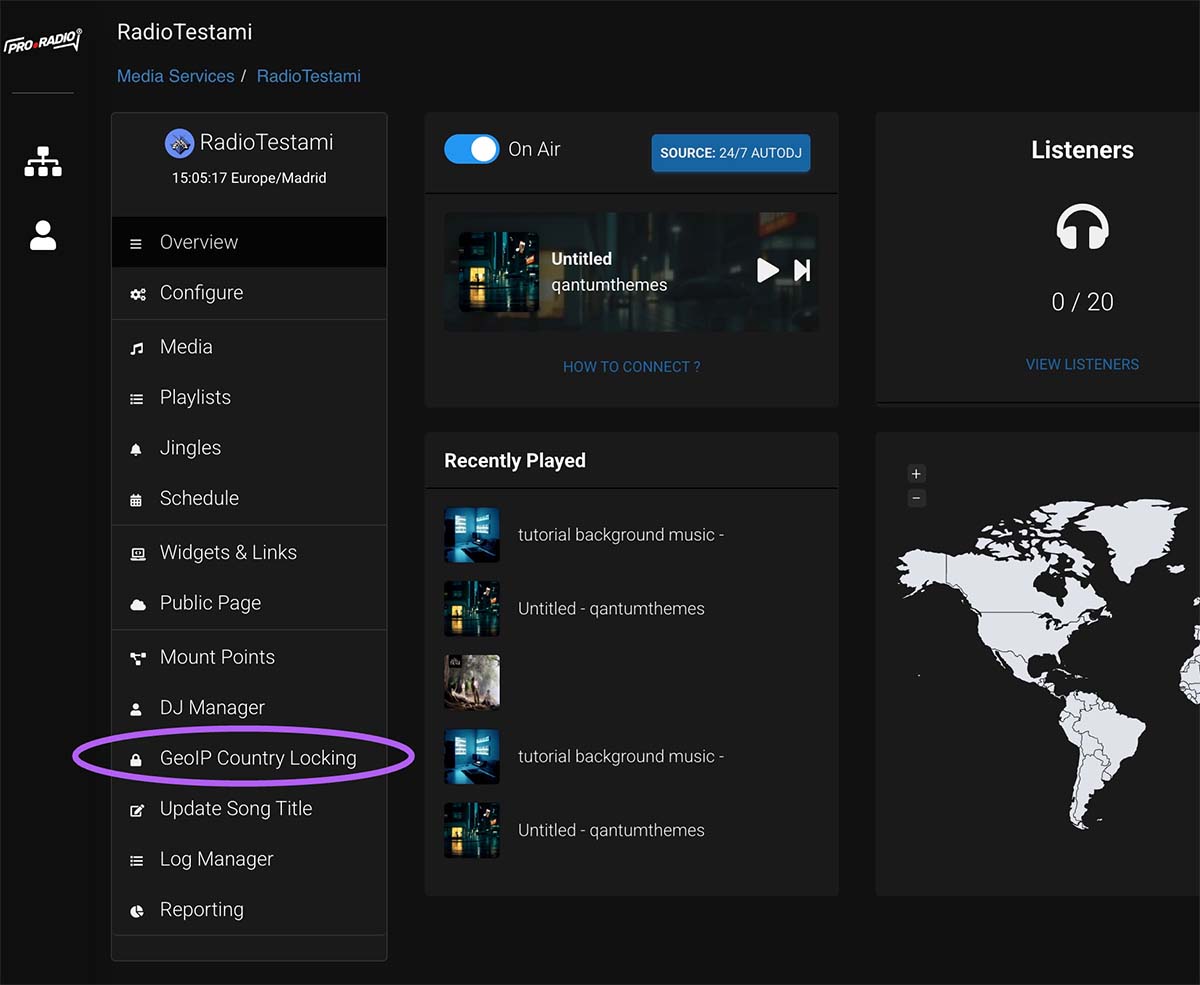
Step 1: Open Country Blocking
From the left menu, click Country Blocking.
Step 2: Choose the blocking mode
You usually have two options. Default Allow means everyone can listen except blocked countries. Default Deny means only selected countries can listen.
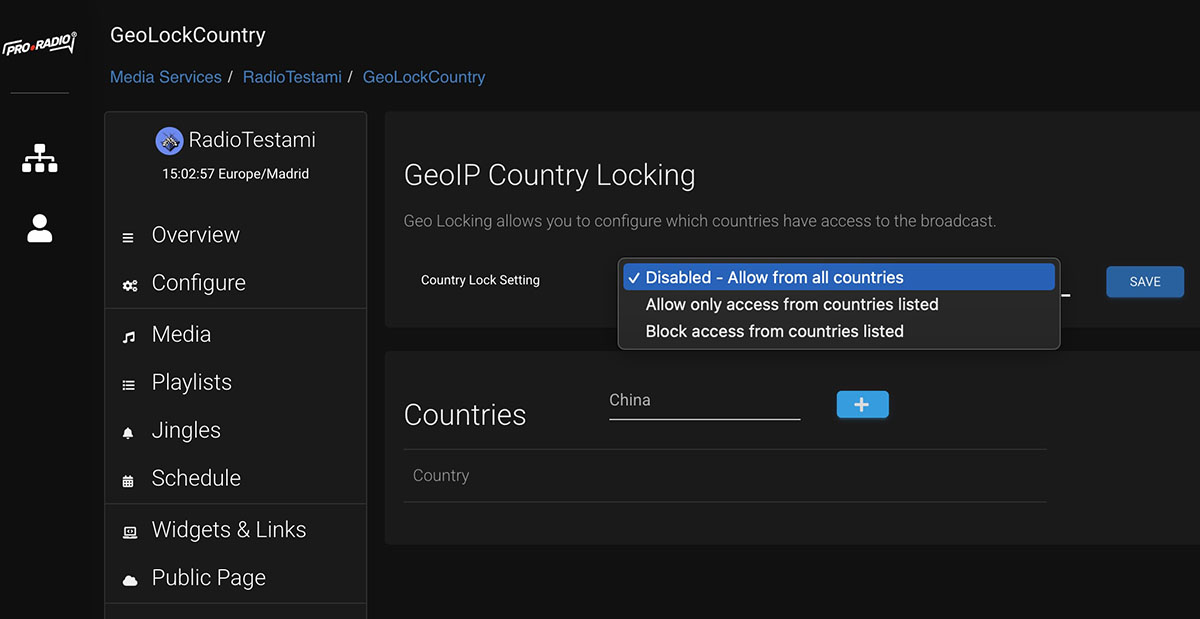
Step 3: Select the countries
Choose the countries you want to allow or block, depending on the mode you selected.
Step 4: Save your changes
Click save and allow a moment for the rule to apply.
Step 5: Optional IP whitelist
If needed, add a single IP address or subnet to the whitelist so it is not affected by the country rule.
Tips
- Use Default Allow if you only need to block a few countries.
- Use Default Deny only if your stream should be available in a small number of countries.
- If this section is missing, ask your administrator to enable the feature on your service.