


This page explains how to find your stream links and connect your MediaCP stream to Pro Radio.
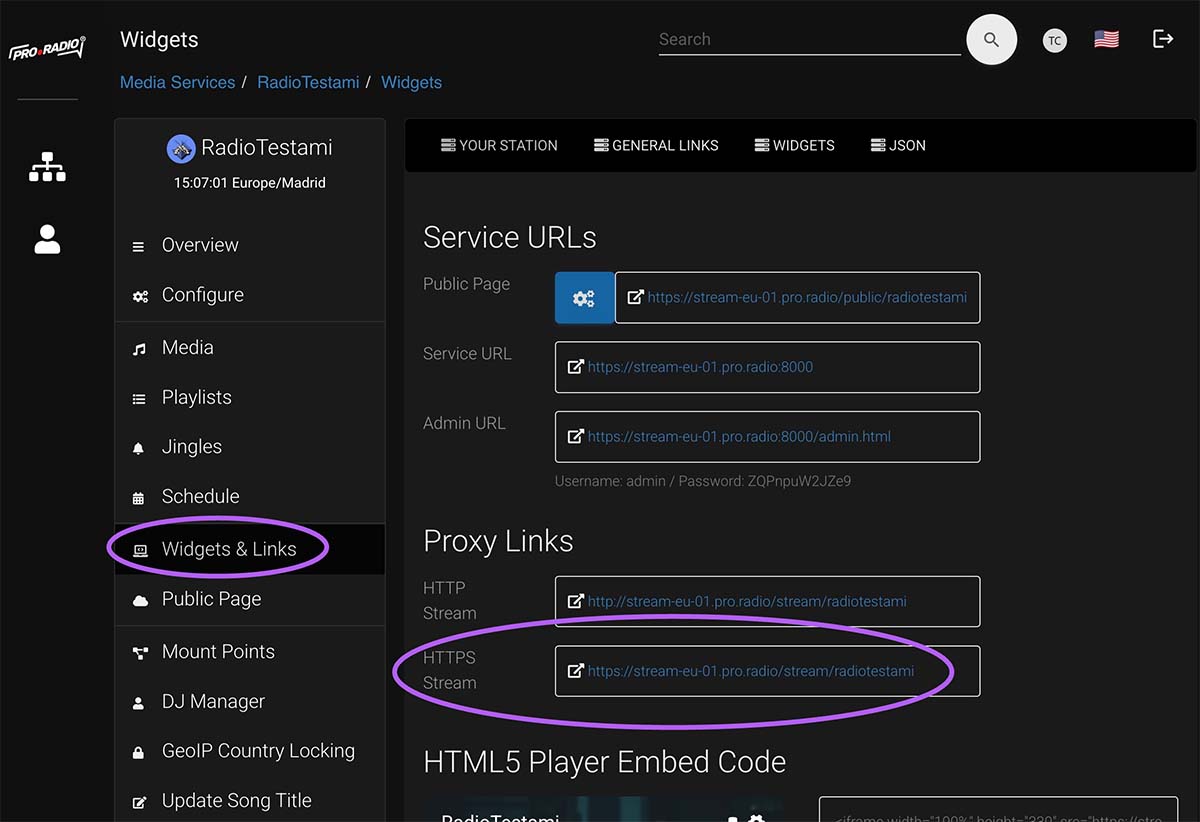
Step 1: Open Widgets and Links
In your MediaCP panel, open the section that contains your public stream links, player links and JSON data link.
Step 2: Copy the HTTPS stream link
Copy the secure stream URL. This is the direct audio stream used by players and websites.
Paste this URL in Pro Radio > radio channels > Mp3 Stream URL
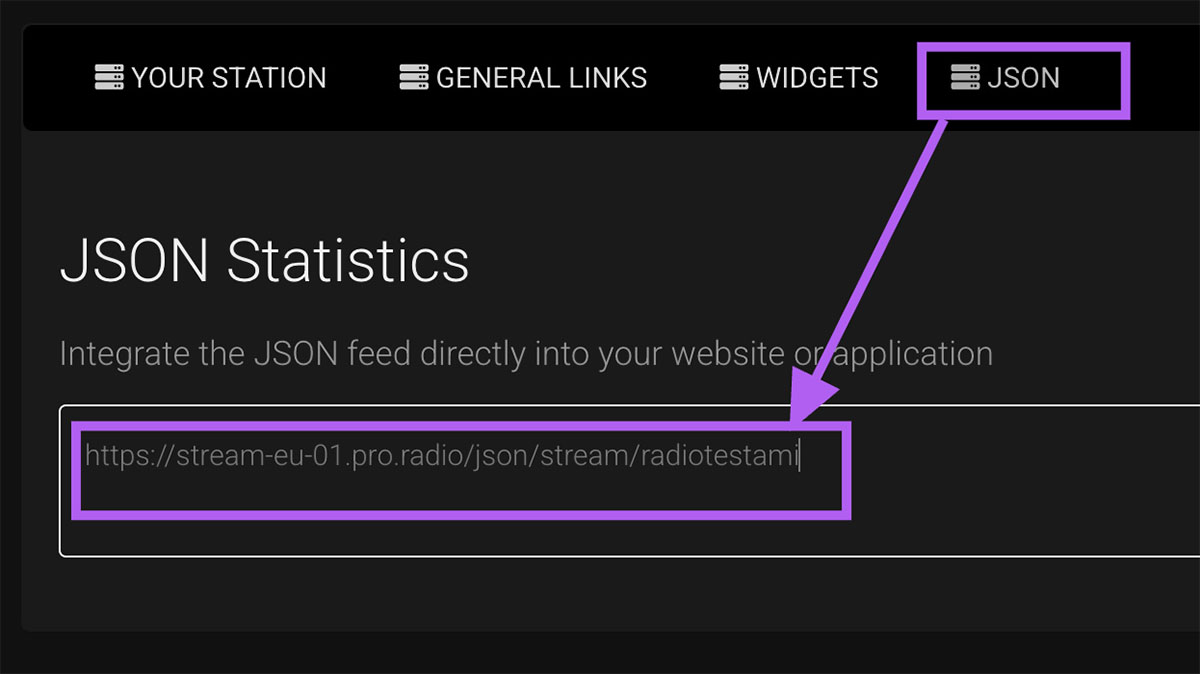
Step 3: Copy the JSON link
Open the JSON tab or JSON section and copy the JSON feed URL. This is used to read titles and metadata on your website.
Step 4: Open WordPress and edit your radio channel
In your WordPress admin, edit the Radio Channel you want to connect.
Step 5: Choose the correct server type
In Pro Radio, choose MediaCP (Citrus3 - Streamerr.co and similar) as the server type.
Step 6: Paste the stream URL
Paste the HTTPS stream link into the field used for the stream URL.
Step 7: Paste the JSON URL
Paste the JSON link into the MediaCP JSON feed field.
Step 8: Save and test the player
Save the radio channel and test your website player. If metadata does not appear, double-check the JSON URL first.
Pro Radio Wordpress Theme can use this source to display current song and artwork, store song history and generate charts on autopilot.
Tips
- Always use the HTTPS stream link when available.
- If the audio works but titles do not appear, the JSON URL is usually the problem.
- Do not use random mountpoints if the panel already provides a working public URL.