


Playlists control what AutoDJ plays and when it plays.
Step 1: Open the Playlists section
From the left menu, click Playlists. This is where you create and manage your automatic programming.
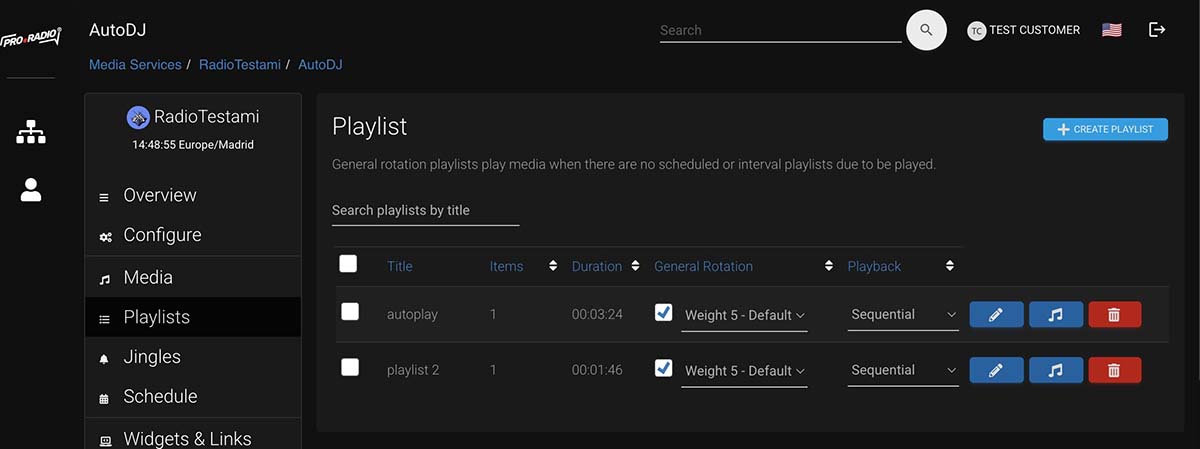
Step 2: Create a main music playlist
Create your first playlist and use it as your main rotation. This is the playlist that will play by default when nothing else is scheduled.
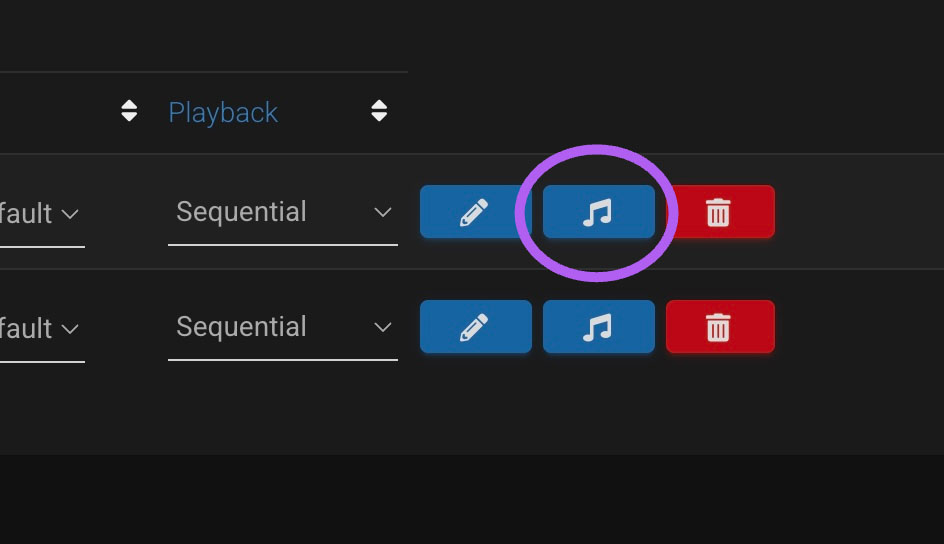
Step 3: Add tracks or folders
Add music from your Media Library. You can usually add individual tracks or entire folders, depending on how you prefer to organize your station.
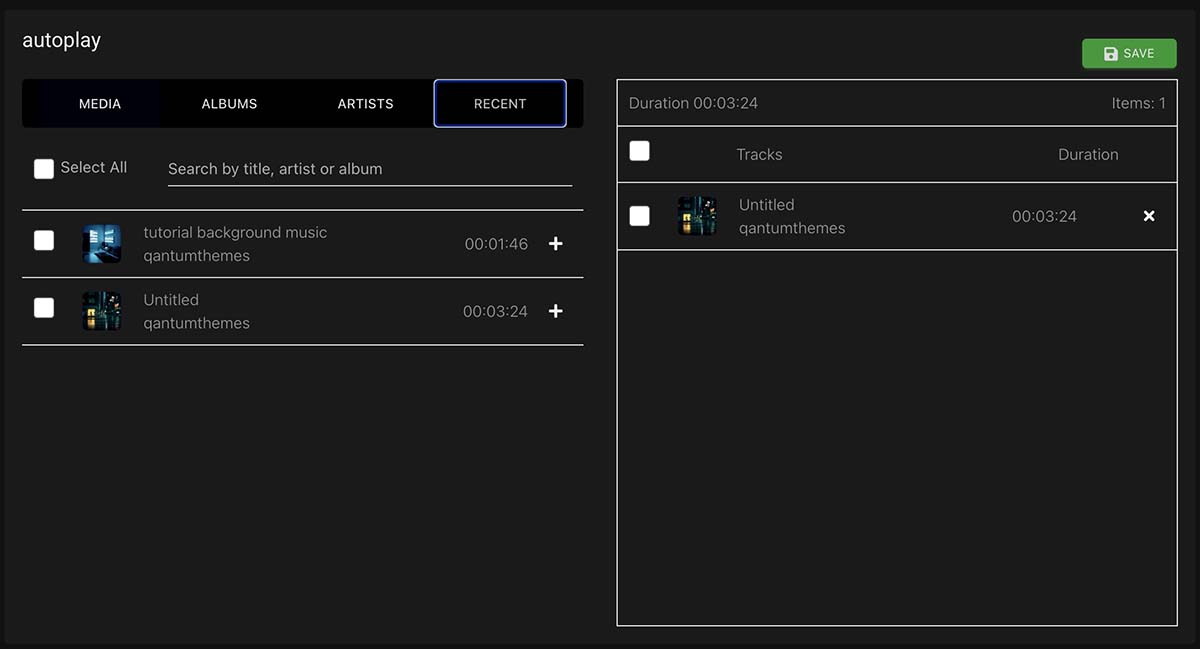
Step 4: Create separate playlists for jingles and adverts
Keep jingles and adverts separate from normal music. This gives you much better control and makes scheduling easier.
Step 5: Schedule special playlists
If you want a playlist to play only on certain days or hours, create a scheduled event and choose the correct days and time.
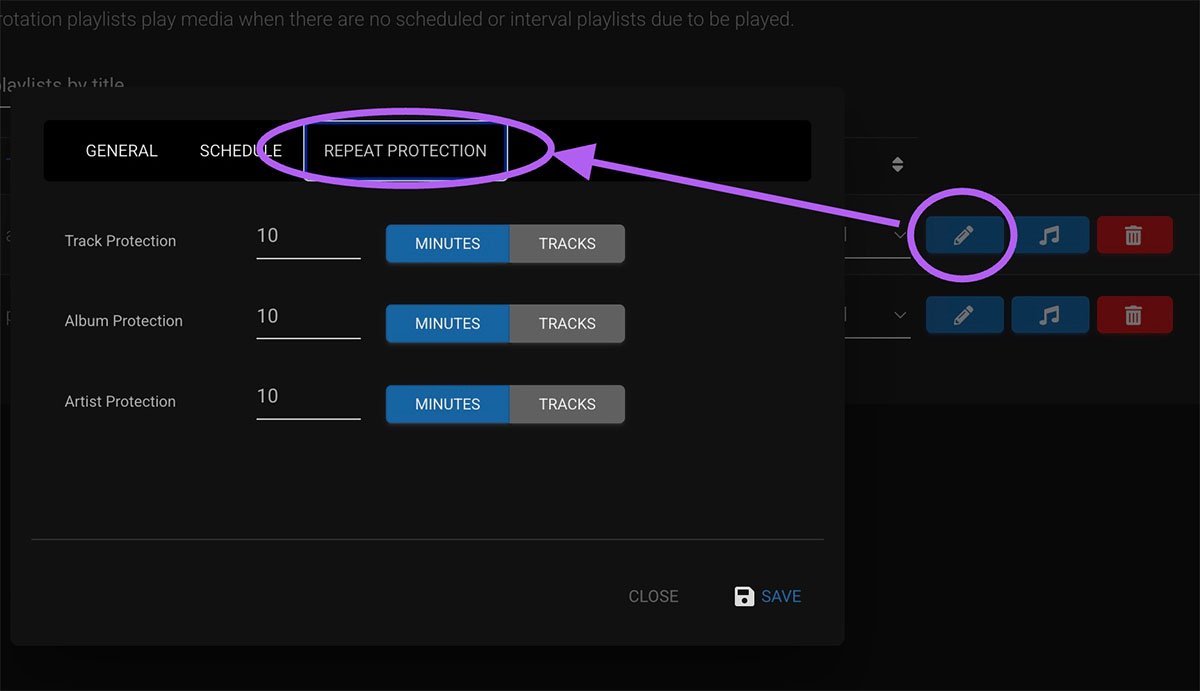
Step 6: Check repeat protection
If a scheduled playlist does not play as expected, check repeat protection settings first. They can block tracks, artists or albums from playing too close together.
Tips
- Use one main rotation playlist for everyday music.
- Keep jingles and adverts in separate playlists.
- If scheduled content does not play, repeat protection is one of the first things to check.